How to Migrate from Azure Data Studio to DbGate
Published: 2026-02-16
Azure Data Studio is nearing the end of its lifecycle, and teams need a practical migration path for day-to-day database work.
Microsoft has announced Azure Data Studio retirement to date February 28, 2026. If you prefer a dedicated database client experience for SQL and NoSQL work, DbGate is a strong replacement for many common Azure Data Studio workflows.
This guide shows how to migrate from Azure Data Studio to DbGate and how to accomplish equivalent tasks with minimal friction.
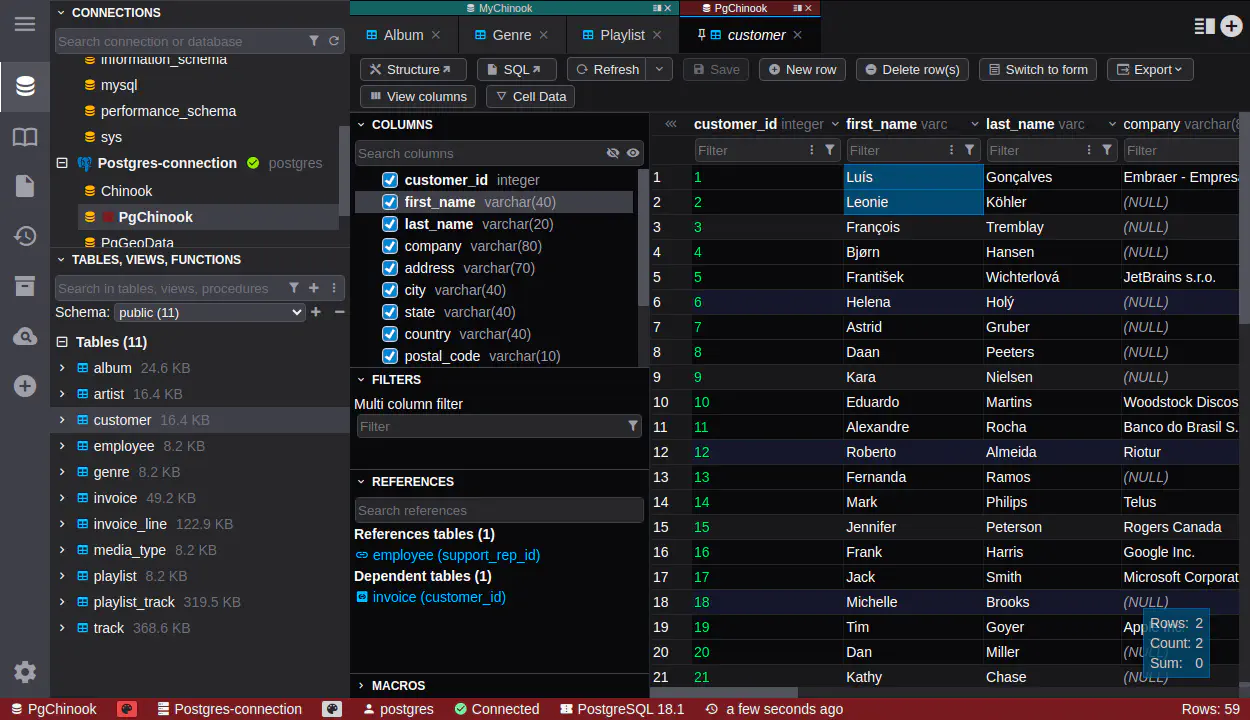
Another practical advantage is user experience familiarity: DbGate has a visual style similar to Visual Studio Code, so for many Azure Data Studio users the interface feels natural and easy to adopt.
Why migrate now
- Reduce risk from end-of-life tooling in your daily workflow
- Standardize your team on a maintained, cross-platform database client
- Keep SQL editing, data browsing, import/export, and schema tasks in one place
- Support mixed environments (for example SQL Server + PostgreSQL + MySQL + MongoDB)
Quick migration checklist
- Install DbGate on your workstation or server.
- Re-create your saved connections (host, port, auth, SSL settings).
- Validate query execution for your most-used scripts.
- Recreate favorite snippets and frequently used SQL files.
- Test import/export pipelines (CSV/JSON/Excel) on a sample dataset.
- Verify schema change workflow in a non-production environment.
- Share a short internal “ADS to DbGate” cheat sheet with your team.
Azure Data Studio to DbGate: use-case mapping
1) Connect to SQL Server / Azure SQL and run queries
In Azure Data Studio: Create connection profile, open new query tab, run T-SQL.
In DbGate:
- Add SQL Server connection in the connection manager
- Open SQL editor tab
- Run queries with autocomplete and result grid
Tip: Save your most-used queries as snippets or SQL files in DbGate for quick access.
2) Browse schemas, tables, views, and routines
In Azure Data Studio: Use Object Explorer.
In DbGate:
- Use database explorer sidebar to navigate schemas and objects
- Open object details and generate SQL where needed
Tip: Pin your most-used databases and tables to reduce click depth.
3) Edit table data quickly
In Azure Data Studio: Open table data editor from context menu.
In DbGate:
- Open table in data editor
- Filter/sort rows by column
- Edit values inline and save changes
Tip: Use data-editing macros for common data transformations (eg. uppercasing a column, filling random GUIDs, etc).
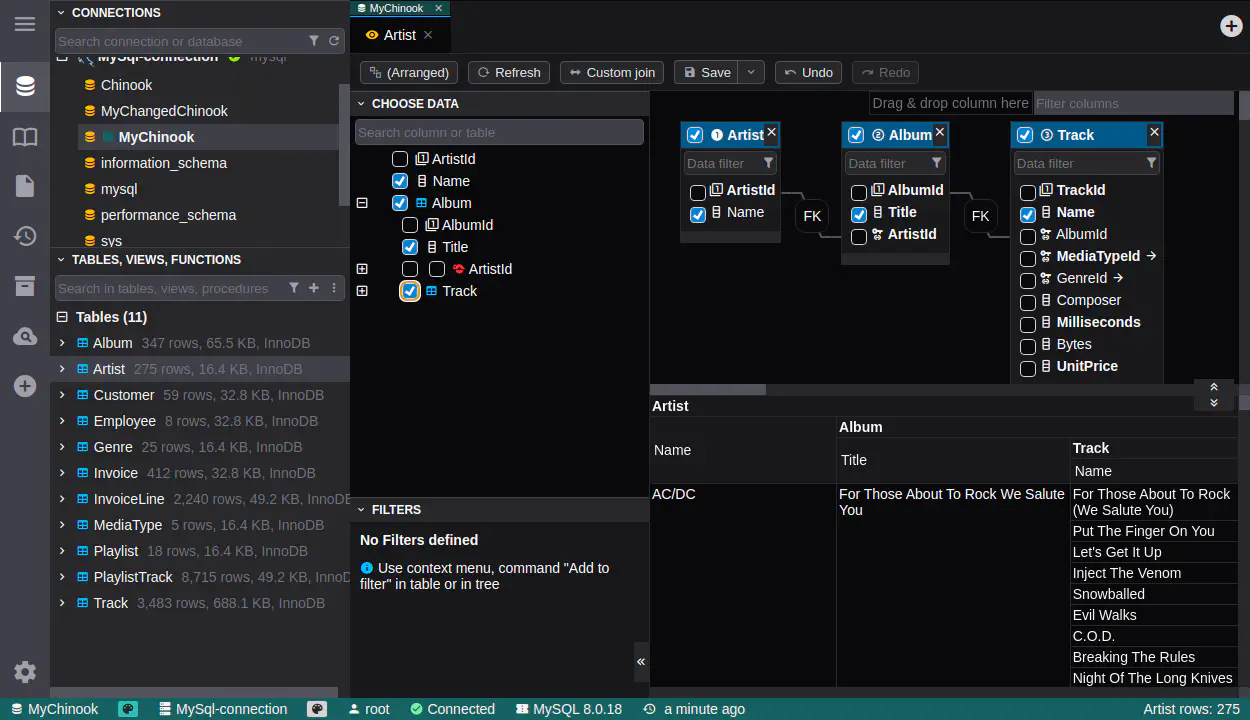
4) Build SQL visually (without writing full SQL by hand)
In Azure Data Studio: Usually query-first workflow, extension-dependent for visual tools.
In DbGate:
- Use Query Designer to add tables
- Define joins visually
- Add filters/grouping and generate SQL
Tip: Use Query Designer for onboarding junior team members or for complex queries that are easier to build visually.
5) Import and export data files
In Azure Data Studio: Commonly done via extensions/wizards.
In DbGate:
- Import CSV/JSON/Excel directly to target table
- Export result sets or tables to CSV/JSON/Excel
- Use mapping options for predictable transformations
Tip: Save import/export configurations for repeatable data pipelines.
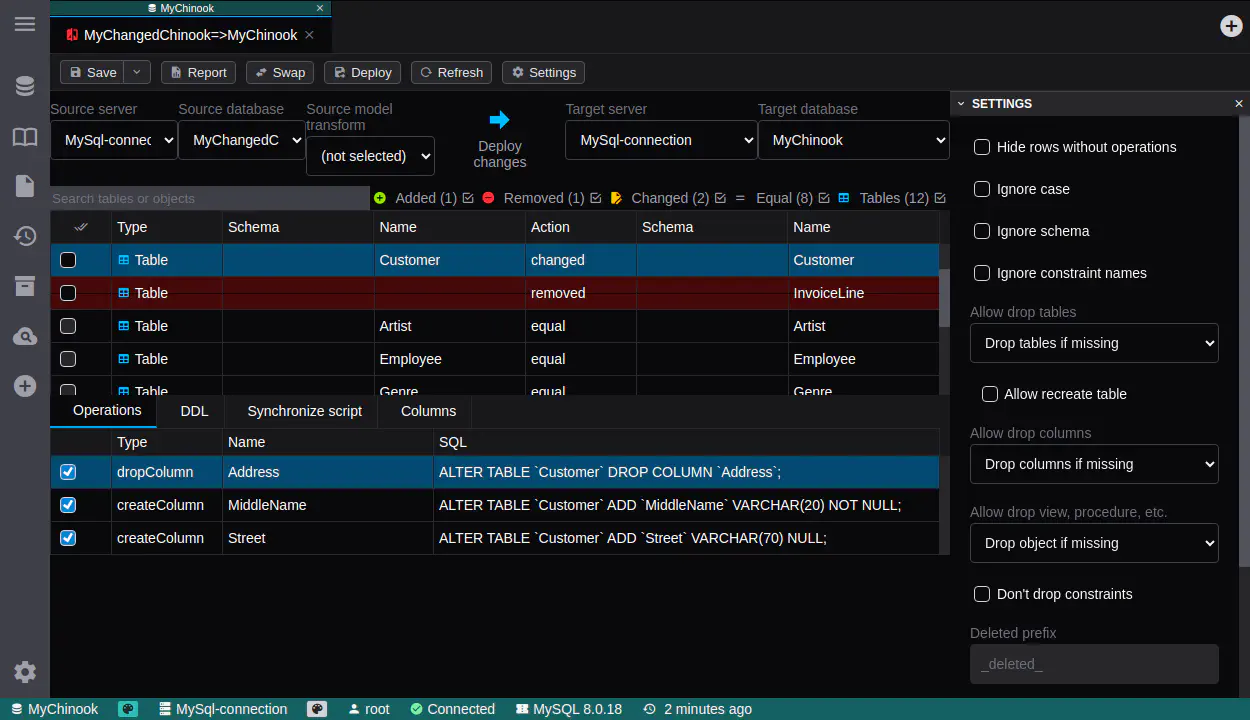
6) Compare and deploy schema changes
In Azure Data Studio: Often handled via specific extensions and SQL projects.
In DbGate:
- Use schema tools to inspect and modify objects
- Compare structures between environments
- Apply generated deployment SQL after review
Tip: Keep environment naming consistent (dev, test, prod) to reduce deployment mistakes.
7) Work across multiple database engines
In Azure Data Studio: SQL Server-centered; other engines rely on extensions.
In DbGate:
- Connect SQL and NoSQL engines in one UI (SQL Server, PostgreSQL, MySQL, MongoDB, Redis, SQLite, Clickhouse etc)
- Use the same workflow for browsing, querying, and exporting
Tip: Consolidating clients reduces context switching and tool sprawl.
Common questions
Is DbGate Free?
Yes. DbGate offers a powerful Community edition that covers many everyday database workflows (free & open-source), and a Premium edition for teams that need advanced capabilities and commercial support options.
Is DbGate only for SQL Server?
No. DbGate supports multiple SQL and NoSQL databases, which is useful if your stack has grown beyond one engine. For example, you can manage SQL Server, PostgreSQL, MySQL, and MongoDB all from the same interface.
Can DbGate work with Microsoft-specific technologies like Azure SQL and Cosmos DB?
Yes. You can connect to Azure SQL using the SQL Server connection in DbGate, and DbGate also directly supports Azure Cosmos DB.
Does DbGate support Microsoft authentication methods such as MS Entra and Windows Integrated authentication?
Yes. DbGate supports Microsoft-specific authentication methods, including MS Entra and Windows Integrated authentication, which are missing or limited in many other database clients.
Final recommendation
Azure Data Studio is retired as of February 28, 2026.
DbGate is a practical migration target because it covers the same core workloads: querying, data editing, import/export, and schema/deployment workflows in one tool.