How to use advanced data browsing techniques in DbGate
Published: 2025-12-19
DbGate is packed with powerful data browsing features that make exploring and working with your database records super easy. In this guide, I’ll show you some advanced techniques available in DbGate Premium, including advanced filtering, grouping, master-detail views, foreign key expansion, and macros.
Just a heads up – some of these features are Premium-only. Check out the feature comparison table to see what’s included in each edition.
Advanced Filtering
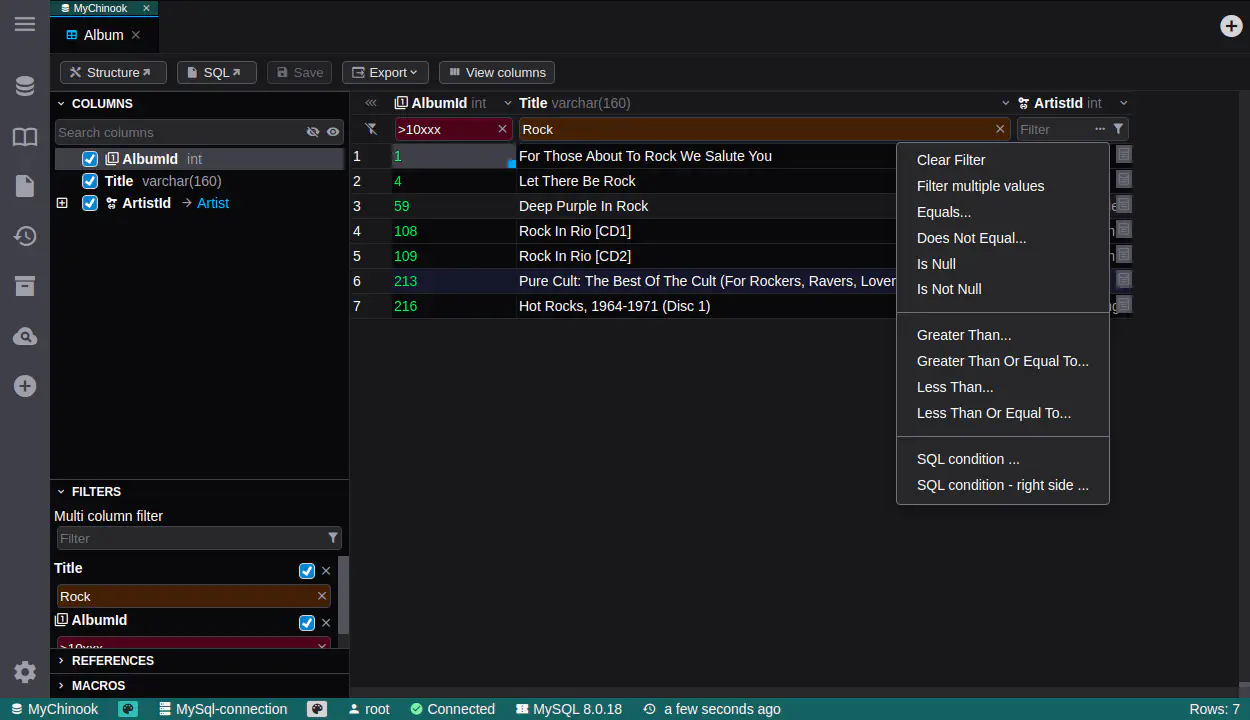
DbGate’s filter expressions let you build complex queries for your data. You can mix and match conditions using logical operators (AND, OR) and comparison operators (=, <>, >, <, LIKE, IN, etc.) to narrow down exactly what you need.
Here’s a super handy trick: you can copy a bunch of column values (like IDs) and paste them straight into the filter field. DbGate will automatically generate the proper SQL IN expression for you.
Master-Detail Views
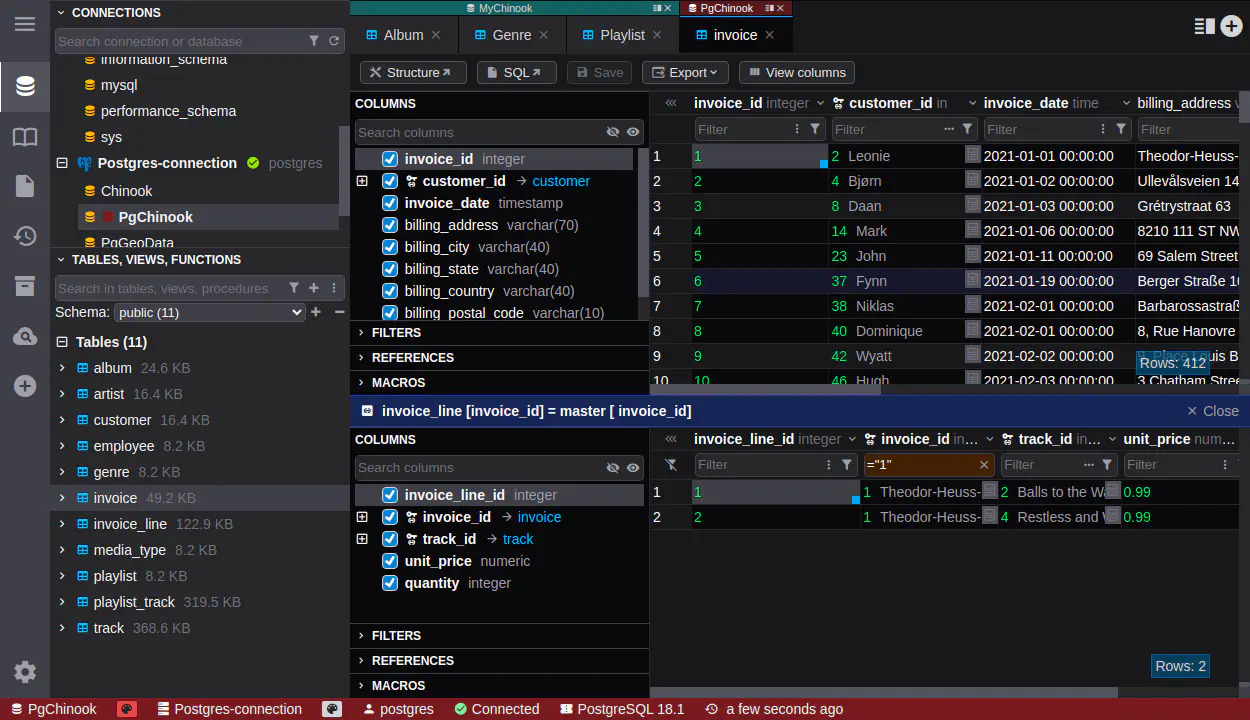
DbGate supports master-detail views, letting you see related records from different tables side by side. You’ll find available views in the “References” section – they’re automatically detected from the foreign keys in your database schema.
Grouping Data
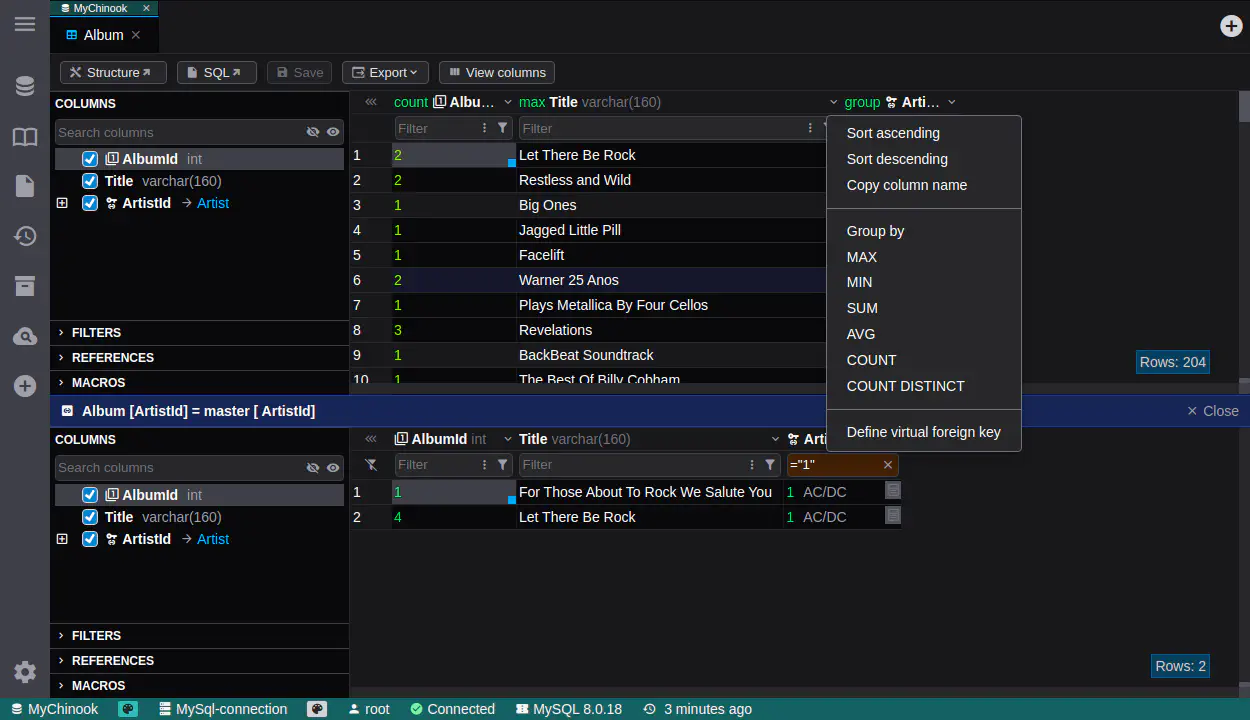
SQL databases have powerful grouping and aggregation features through the GROUP BY clause. DbGate makes this super easy – you can group your data by one or more columns right from the data browser. Just click on any column header and select “Group by”. That’s it!
Expanding Foreign Keys
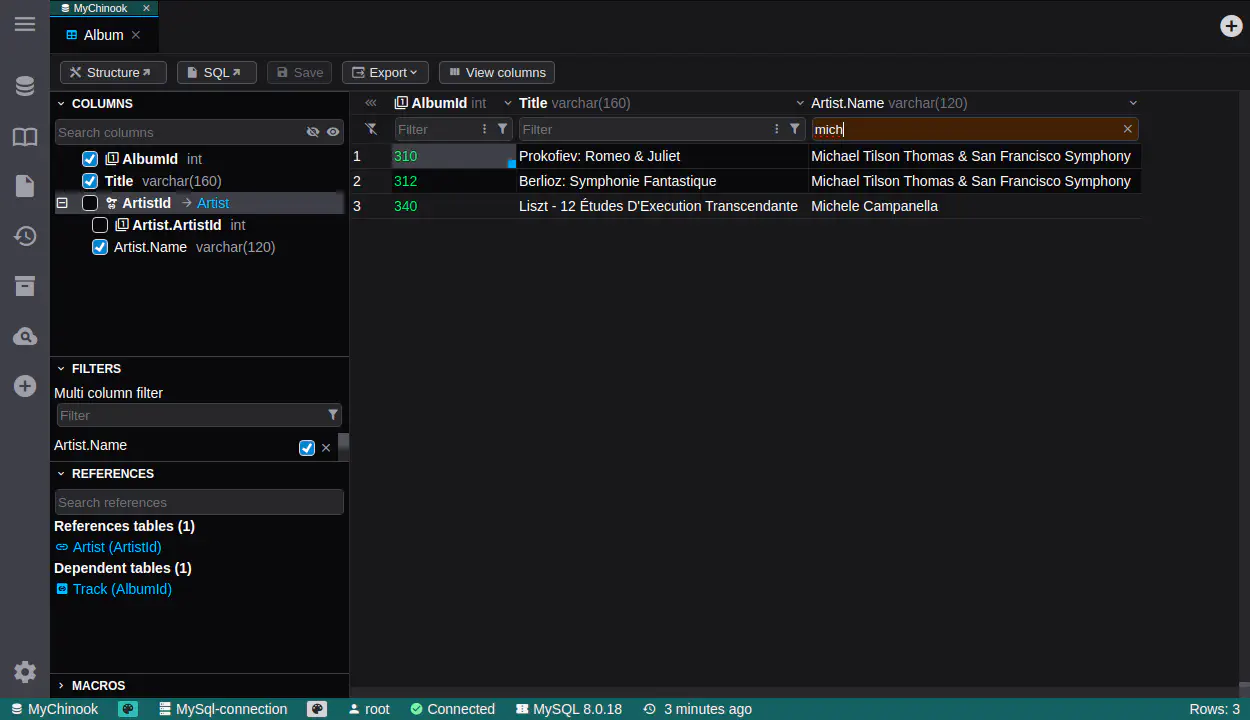
When browsing data, DbGate lets you expand foreign key relationships to see related records from other tables right alongside your main row. You can even filter your data based on values from those related tables.
Perspectives
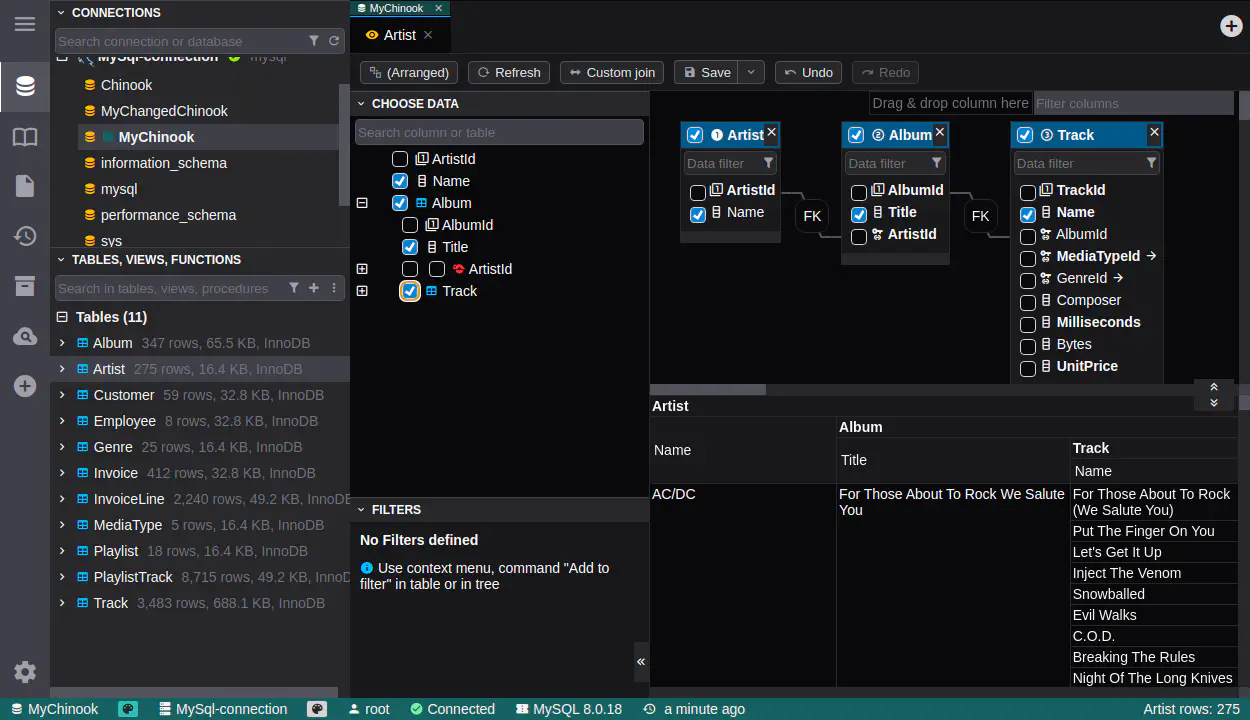
Perspectives are one of DbGate’s coolest features – they let you join data from anywhere: tables across different SQL servers, views, and even MongoDB collections. The results show up as a nice hierarchical view.
This feature was inspired by Eirik Bakke’s PhD thesis Expressive Query Construction through Direct Manipulation of Nested Relational Results. Eirik also created Ultorg, which builds on the same concepts.
In this article, I’ve covered some of the advanced data browsing techniques available in DbGate Premium. In upcoming articles, I’ll dive deeper into DbGate’s data editing features. Stay tuned!