How to Manage Cloudflare D1 Databases with DbGate
Published: 2026-10-19 | Jan Procházka
Cloudflare D1 is a serverless SQL database that lives right next to your Cloudflare Workers. It speaks SQLite, needs no servers to configure, and costs nothing until your application grows. What it does not give you is a comfortable place to look at your data. The Cloudflare dashboard has a basic console, and Wrangler can run SQL from the command line, but neither is a real database tool.
This guide explains what D1 is good for, where its limits are, and how to connect it to DbGate so you can browse, query, edit and back up your D1 databases like any other database.
Cloudflare D1 support is available in DbGate Premium since version 7.3.0. Backup and restore of D1 databases were added in version 7.3.2.
What Is Cloudflare D1?
D1 is Cloudflare’s managed database built on SQLite. Each D1 database is a full SQLite database stored and replicated by Cloudflare. You create it with one click or one wrangler d1 create command, bind it to a Worker, and query it with ordinary SQL.
What D1 gives you:
- SQLite semantics – the same SQL dialect, data types and functions you know from SQLite, including JSON functions and full-text search with FTS5
- No infrastructure – no servers, no connection pools, no patching, no capacity planning
- Pay-per-use pricing – you pay for rows read, rows written and storage, with a generous free tier
- Many small databases – an account can hold thousands of databases, so a separate database per tenant or per user is a realistic design
- Time Travel – point-in-time recovery to any minute within the retention window (30 days on the paid plan), without configuring any backups
- Read replication – optional read replicas in other regions to lower read latency for globally distributed users
- Tight Workers integration – a Worker reaches its database through a binding, with no credentials in code and no network setup
There are three ways to access a D1 database:
- Worker binding – the way your application talks to D1 in production
- Wrangler CLI – for migrations and ad-hoc commands during development
- Cloudflare REST API – for administration from outside Cloudflare. This is the way DbGate connects.
Limitations to Know About
D1 is SQLite, but it is not a local SQLite file. Before you choose it, check that its limits fit your application. The values below are current at the time of writing; see the official D1 limits page for the latest numbers.
- Database size – a single database is limited to 10 GB on the paid plan and 500 MB on the free plan. D1 is designed to scale out to many smaller databases, not up to one huge database.
- One writer at a time – each database processes queries one after another. Throughput therefore depends on how fast your queries are; long-running queries block everything else.
- No interactive transactions – you cannot
BEGINa transaction, do some work andCOMMITlater. Instead, D1 runs a batch of statements atomically: either all statements of the batch succeed, or none of them is applied. - Statement and value sizes – one SQL statement may be at most 100 KB long, and a single row, string or BLOB at most 2 MB. Big files belong in R2, not in D1.
- Query duration – one query may run for at most 30 seconds.
- Billing by rows scanned – you pay for every row a query reads, not for every row it returns. A full table scan on a large table is expensive, so good indexes matter even more than usual.
- No file-level SQLite features –
ATTACH DATABASE, loading extensions or writing tosqlite_masterare not allowed. Foreign keys are always enforced; instead ofPRAGMA foreign_keys = OFF, you can usePRAGMA defer_foreign_keys = oninside a batch. - Reserved names – tables starting with
_cf_are internal to Cloudflare and cannot be read or modified. - REST API rate limits – the REST API shares Cloudflare’s global API rate limits. It is meant for administration and tools, not for serving production traffic. Your application should use a Worker binding.
Typical Use Cases
D1 works best when your application already runs on Cloudflare, or when data naturally splits into small, independent databases:
- Backends for Workers and Pages – user accounts, settings, content and orders for web applications running at the edge
- Database per tenant – each customer of a SaaS application gets its own isolated database, which simplifies data separation, deletion and export
- Content and configuration stores – blogs, CMS content, feature flags, redirects and other read-heavy data, ideally served through read replicas
- Prototypes and side projects – the free tier and zero setup make it quick to start, and you can grow later
- Lightweight analytics and logs – counters, events and audit logs, as long as each database stays within the size limit
- Edge caches of other data – a SQLite copy of selected data from your main database, close to your users
D1 is a poor fit for a single large, write-heavy OLTP database, for workloads that need long interactive transactions, or for storing big binary files. Those cases are better served by PostgreSQL, MySQL or another traditional database, possibly reached through Cloudflare Hyperdrive.
Connecting DbGate to Cloudflare D1
DbGate connects to D1 through the Cloudflare REST API. One connection is bound to a Cloudflare account and shows all D1 databases that the API token can access.
Step 1 – Find Your Account ID
- Sign in to the Cloudflare dashboard.
- Open Storage & Databases | D1 SQL Database, or open the account home page.
- Copy your Account ID. It is shown in the account details and is also part of the dashboard URL (
dash.cloudflare.com/<account-id>/...).
Step 2 – Create an API Token
- Go to My Profile | API Tokens and click Create Token.
- Choose Create Custom Token.
- Under Permissions, add Account | D1 | Edit. If you only want to read data, Read is enough.
- Under Account Resources, select the account that holds your databases.
- Optionally restrict the token to your IP address and set an expiration date.
- Create the token and copy it. Cloudflare shows it only once.
Use a dedicated token for DbGate, so you can revoke it independently of tokens used by your deployment pipelines.
Step 3 – Create the Connection in DbGate
- In DbGate, click New connection.
- Select Cloudflare D1 as the connection type.
- Fill in Cloudflare Account ID and Cloudflare API Token.
- Leave Cloudflare API URL empty, unless you need to reach the API through a custom endpoint. The default is
https://api.cloudflare.com/client/v4. - If your network requires it, configure an HTTP proxy in the connection settings.
- Optionally check Is read only to protect your data from accidental changes.
- Click Test and then Save (or Connect).
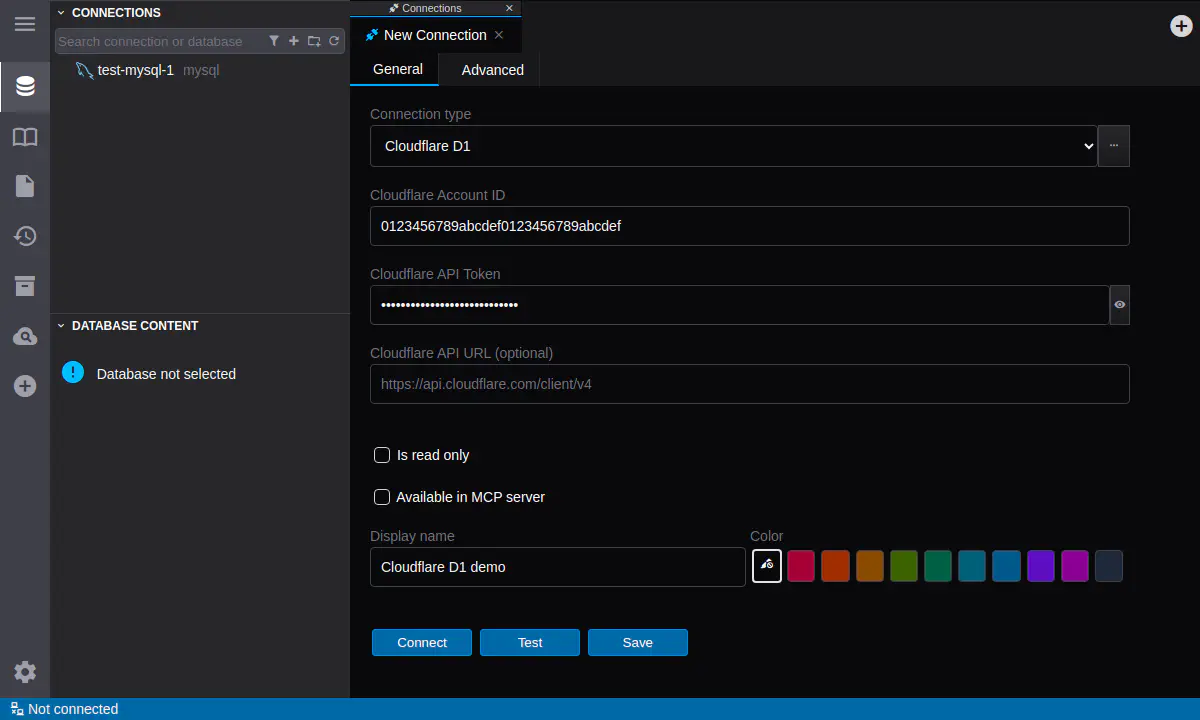
After connecting, DbGate lists all D1 databases in the account that the token can access. Expand a database to see its tables, views and their columns, indexes and foreign keys.
If the connection fails, DbGate tries to tell you why: an invalid or expired token, a token without the D1 permission, a wrong account ID, or a database that no longer exists.
Managing D1 from DbGate
Under the hood, DbGate treats D1 as SQLite with a different transport. The data browser, SQL generation and schema analysis are the same that DbGate uses for local SQLite files, so most of what you know from SQLite works the same way.
Browse and Edit Data
Open any table in the data browser to filter, sort and search its rows, follow foreign keys to related records, or edit values directly in the grid. Changes are written to D1 when you save them.
Because D1 bills by rows read, use filters and indexed columns when you explore large tables, instead of scrolling through everything.
Explore the Schema
DbGate loads the complete database structure – tables, columns, primary keys, foreign keys, indexes and views. Every query to D1 is an HTTPS request, so DbGate plans the schema analysis up front and sends it as a few batch requests instead of hundreds of single queries. For a normally sized database, a full analysis takes just two requests.
Cloudflare’s internal _cf_* tables are hidden from the schema, so you only see your own objects.
Run SQL Queries
Open a query editor on a D1 database and write SQLite SQL as usual, with code completion based on the loaded schema. When you run a script with several statements, DbGate sends all of them to D1 as one batch. D1 executes a batch atomically, so a script either runs completely or not at all.
Keep in mind:
- Explicit
BEGIN,COMMIT,ROLLBACKandSAVEPOINTstatements are rejected with a clear message, because the D1 API has no interactive transactions. The transaction buttons are hidden for D1 connections. - On a connection marked as Is read only, DbGate allows only
SELECT,EXPLAINand schema-reading PRAGMA statements. Everything else is rejected before it is sent to Cloudflare. For defence in depth, also use an API token with the D1 | Read permission. EXPLAIN QUERY PLANis your friend: it shows whether a query uses an index or scans the whole table, which directly affects your D1 bill.
Export and Import Data
Query results and tables can be exported to CSV, Excel, JSON and other formats supported by DbGate, and you can import data from files into D1 tables. This is handy for one-off data fixes, reports or for moving data between D1 and other databases you have connected in DbGate.
Back Up a D1 Database
Time Travel protects you against mistakes within the retention window, but it does not give you a file you can keep, archive or open elsewhere. DbGate can back up a D1 database to a plain SQL file:
- Right-click the database in the connection tree.
- Choose Create database backup.
- Select what to include – schema, data, database settings and rowids – the same options as for a local SQLite backup.
- Start the backup.
The result is an ordinary SQLite SQL script. You can restore it into another D1 database, open it with the sqlite3 command-line tool, or load it into a local SQLite file for development and debugging.
Restore into D1
DbGate can also restore an SQL dump into a D1 database – a backup created by DbGate, or a SQLite dump from another source. Right-click the target database, choose Restore database backup and pick the SQL file.
Because D1 does not accept a dump as-is, DbGate adapts it during the restore:
- The dump is sent in batches of up to 250 statements (and at most 1 MB). Each batch runs as one D1 transaction, so a failed batch leaves nothing half-written behind.
- Transaction statements from the dump are skipped, because each batch is its own transaction.
- Foreign keys are deferred to the end of each batch with
PRAGMA defer_foreign_keys = on, as Cloudflare recommends for imports. - Objects with reserved
_cf_names are skipped. - Statements D1 may refuse to write, such as AUTOINCREMENT counters, statistics or
user_version, run after the data and are only reported as warnings. - With Stop on first error enabled, the restore stops at the first failing batch; otherwise it continues and reports all failures at the end.
Two things cannot be restored through D1’s SQL API: rows whose INSERT statement is longer than D1’s 100 KB statement limit (typically rows with large text or BLOB values), and virtual tables that a dump recreates through PRAGMA writable_schema. DbGate reports them clearly instead of failing silently.
This combination of backup and restore is also a simple way to move a local SQLite database to D1: back up the local file with DbGate and restore the SQL file into an empty D1 database. And it works the other way round, too – for example, to copy production D1 data into a local SQLite file for testing.
Restoring into a read-only connection is not allowed.
Security Notes
- The API token is stored with the connection like other DbGate credentials. Never share it, and prefer tokens limited to D1 permissions, a single account, and, if possible, your IP address.
- DbGate makes sure the token never appears in logs or error messages.
- In DbGate Team Premium, you can define the D1 connection once on the server and control which users and roles may use it, instead of distributing the API token to every team member.
Conclusion
Cloudflare D1 makes it easy to give every Worker, project or tenant its own SQL database. DbGate makes those databases easy to work with: connect with an account ID and an API token, and you get schema browsing, a data grid with editing, a SQL editor, data export and import, and backup and restore – in the same tool you already use for PostgreSQL, MySQL, SQL Server, SQLite and many other databases.
Download DbGate and try it with your D1 databases.