How to Use Claude for Debugging Your APIs
Published: 2026-07-14 | Jan Procházka
Debugging an API usually means juggling Postman collections, writing throwaway scripts, or hand-crafting queries just to answer a simple question like “why is this field null?” or “which order is stuck?”. What if you could just ask?
DbGate Central ships a built-in MCP (Model Context Protocol) server that exposes your API connections to AI assistants such as Claude. Once it is connected, Claude can explore and query your live GraphQL, Business Central (oData) and Shopify connections the same way you do - directly from the chat, with access that you stay in control of.
This guide shows you how to set it up in a few minutes and then use Claude to debug all three.
Why debug APIs with Claude?
Because reads and writes reuse the same engine as the DbGate Central grid, Claude sees exactly the same data and capabilities you do - never more than the access you grant. That makes it a natural debugging companion:
- “What does the schema of this entity actually look like?”
- “Find the records where this field is null and show me what they have in common.”
- “Which order is missing a fulfillment, and why?”
You describe the problem in plain language; Claude introspects the schema, runs the queries, and reasons over the results - without you leaving the conversation.
What you’ll need
- A DbGate Central workspace with the connections you want to debug already added - a GraphQL endpoint, an oData endpoint (we’ll use Microsoft Dynamics 365 Business Central as the example), and/or a Shopify store. See Connect to API endpoints if you haven’t added them yet.
- A Claude account that supports custom connectors.
Step 1 - Create an MCP profile in DbGate Central
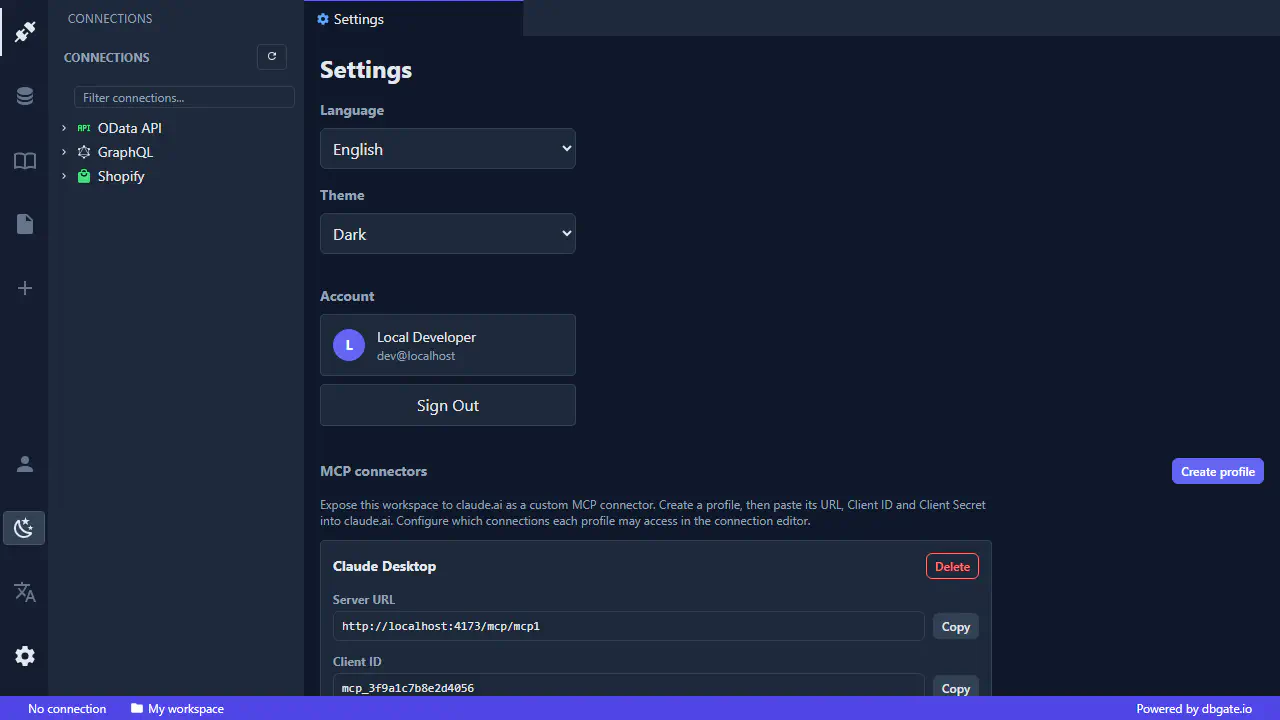
Open the Settings tab (the gear icon at the bottom of the activity bar) and create a new MCP profile. The profile gives you three values you’ll need in a moment:
- Server URL - in the form
https://central.dbgate.cloud/mcp/{profileId} - Client ID
- Client Secret
Copy all three. Each workspace can have multiple MCP profiles, each with its own URL, credentials and per-connection grants - so you can hand out narrowly-scoped access (for example, one profile that only sees a single read-only connection).
Step 2 - Add the custom connector in claude.ai
In claude.ai, add a custom connector using the Server URL from the previous step, together with the Client ID and Client Secret as the OAuth credentials.
Claude then runs the OAuth 2.1 with PKCE handshake: you are asked to sign in to DbGate and consent, which binds the connector to that specific MCP profile and workspace. Client secrets are encrypted at rest, and nothing about your data is shared until you complete this step.
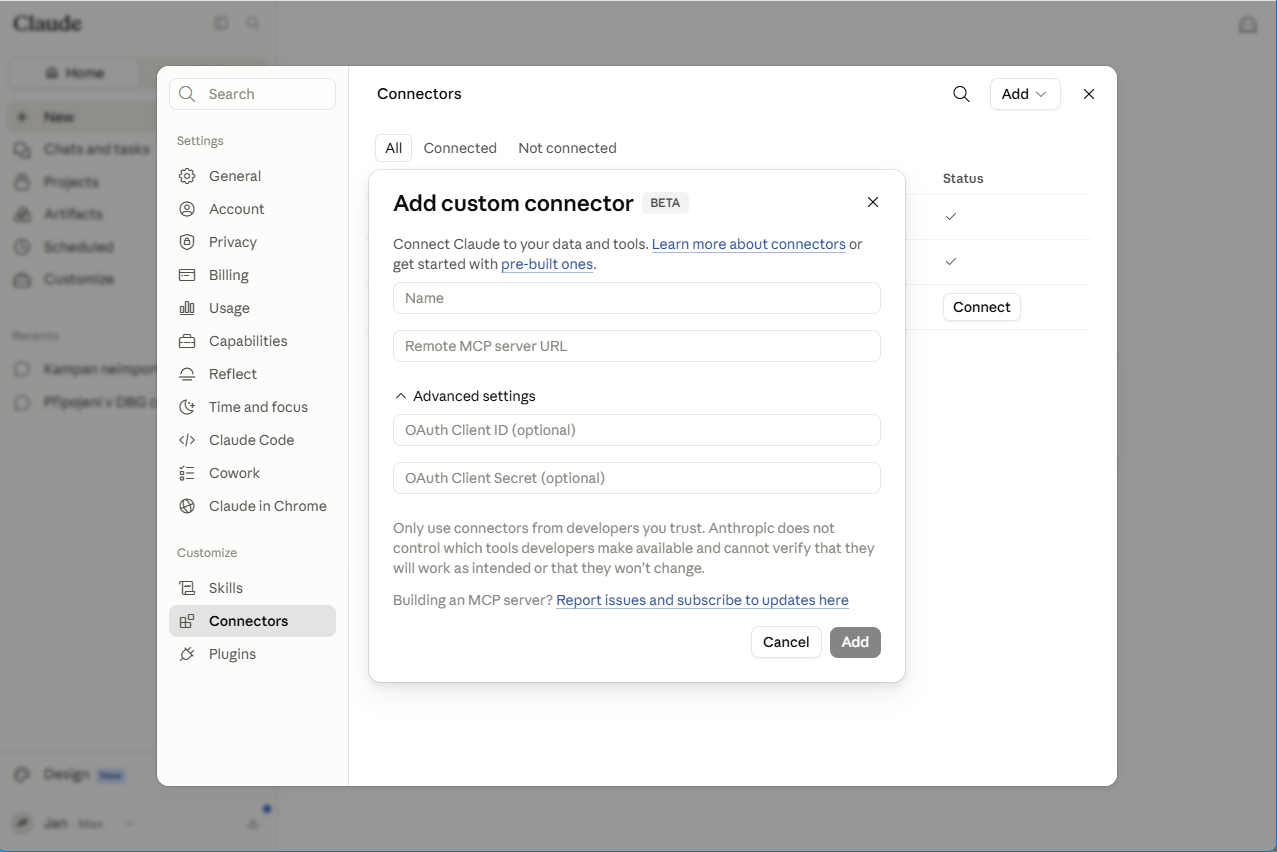
Adding the DbGate Central custom connector in claude.ai
Step 3 - Grant per-connection access
By default, an MCP profile has No access to everything - so connecting the profile alone shares nothing. For each connection you want Claude to reach, open its editor and set the MCP access level:
- No access (default) - the connection is invisible to the agent.
- Read-only - the agent can list, inspect and query, but not change anything.
- Writable - the agent can also update rows (Shopify only, see below).
A sensible starting point for debugging is Read-only for your GraphQL and Business Central connections, and Writable for Shopify only if you actually want Claude to make changes.
What Claude can do
Once a connection is shared, Claude gets these tools for oData, GraphQL and Shopify connections:
- List connections - the connections this profile is allowed to use.
- List entities - tables, views or catalog entities.
- Inspect the schema - column names and types.
- Query rows - filter, page and select data.
- Update rows - Shopify only, and only when you grant Writable access.
Debugging each API type
Here is how a real debugging session looks for each connection type. The prompts are plain English - the tool calls in italics are what Claude runs under the hood.
GraphQL
GraphQL’s flexibility is also what makes it hard to debug: a query silently returns null and you’re left guessing whether it’s the schema, the arguments or the data. Let Claude walk the schema for you.
You: In my GraphQL connection, list the available entities, show me the schema of
orders, then find any orders wheretotalis null and tell me what they have in common.
Claude runs list_entities to discover the views, get_schema on orders to confirm the fields and types, then query_rows to pull the offending records - and reasons over the result to spot the pattern (for example, all of them missing a related payment node).
oData - Business Central
Microsoft Dynamics 365 Business Central exposes its data as an oData V4 service, which DbGate Central treats like an ordinary set of tables. That makes ERP data - customers, invoices, ledger entries - queryable in plain language.
You: In my Business Central connection, find the sales invoices for customer “Contoso” from last month, and total their amounts.
Claude uses query_rows, translating your request into the oData query options behind the scenes - $filter to narrow to the customer and date range, $select to pick the columns, and $top/$skip to page - then sums the results for you.
Shopify
For a Shopify store, DbGate Central connects through the Shopify Admin API and exposes products, orders, customers, metafields and more.
You: Find order #1043 and tell me why its fulfillment is stuck.
Claude runs query_rows against your Shopify connection to locate the order and inspect its fulfillment and line-item status.
If - and only if - you granted Writable access, Claude can also make the fix:
You: Add the tag
needs-reviewto that order.
Claude uses update_rows, which is available for Shopify only and requires Writable access. It finds the record by a match target and value, then applies your update. On Read-only connections this tool simply isn’t available, so an agent can never change data you didn’t intend to expose.
You stay in control
The MCP server is built so that sharing your workspace with an AI assistant never means giving up control:
- Nothing is shared by default - every connection starts at No access.
- Per-connection grants - you decide exactly which connections are Read-only vs Writable, per MCP profile.
- Writes are opt-in and narrow -
update_rowsexists only for Shopify and only with Writable access. - Secure by design - authentication uses OAuth 2.1 with PKCE, and client secrets are encrypted at rest.
- Never more than you - the agent uses the same engine as the grid, so it sees exactly the data and capabilities you do.
Conclusion
With a DbGate Central MCP profile and a custom connector in claude.ai, Claude becomes a hands-on debugging partner for your GraphQL, Business Central (oData) and Shopify APIs - inspecting schemas, running queries and, where you allow it, applying fixes. Set it up once, grant only what you need, and start asking questions instead of writing them.